Snagfactory

Snagfactory is a tool for simultaneous and efficient recovery and flashing of multiple embedded devices. It leverages the support range of Snagboot along with the multithreading capabilities of the host machine.

The tool currently supports MMC and MTD backends for flashing images. It has been tested on AM625x and A64 SoCs.

There are four main steps involved in using Snagfactory:

  1. Compile recovery images

  2. Write a configuration file

  3. Bind the libusb-win32 driver to your boards

  4. Run Snagfactory

Recovery images

To rescue the boards from ROM recovery mode and handle the flashing operations, a special set of U-Boot images are needed. Please refer to the corresponding documentation for instructions on how to build working recovery images for your device. This should preferably be done on a Linux system.

Moreover, you should make sure that the following config options are enabled when compiling U-Boot:

• CONFIG_CMD_FASTBOOT
• CONFIG_FASTBOOT
• CONFIG_USB_FUNCTION_FASTBOOT
• CONFIG_FASTBOOT_UUU_SUPPORT
• CONFIG_FASTBOOT_OEM_RUN
• CONFIG_CMD_PART
• CONFIG_CMD_GPT
• CONFIG_CMD_MTDPARTS

Additionally, you'll need to enable autoboot and set the default boot command to fastboot usb 0

Please use menuconfig to check that your configuration is coherent, as some of these settings depend on intermediate options, which won’t be apparent if you modify the .config file directly.

Configuration file

General layout

The example configuration files for emmc and spi-nand backends showcase the main features of Snagfactory.

The Snagfactory configuration file is a yaml document with two main sections:

The "boards" section, which specifies a list of USB vid:pid pairs that correspond to board USB recovery devices. Each USB device is associated with an SoC model supported by snagrecover.

boards:
  "0451:6165": "am625"
  "1f3a:efe8": "a64"

The "soc-models" section, which specifies a list of recovery and factory flashing parameters for each SoC model. The '-firmware' section specifies a snagrecover firmware configuration for this SoC. Please refer to the snagrecover docs for more information. The '-tasks' section specifies a list of factory flashing actions to be performed in order.

soc-models:
  am625-firmware:
    tiboot3:
          path: "tiboot3_evm.bin"
    tispl:
          path: "tispl_evm.bin"
    u-boot:
          path: "u-boot_evm.img"

  am625-tasks:
    - target-device: mmc0
      fb-buffer-addr: 0xd0000000

    ...

Factory flashing tasks

Each SoC model in the Snagfactory configuration is associated with a list of tasks that will be run in order. If one of the tasks fails, the ones that follow it will not run.

The first element in the '-tasks' list is a dictionary of global configuration variables, that are common to all tasks. It must contain the following values:

target-device: The device configured as the Fastboot flashing backend in U-Boot. Either 'mmc<num>' or 'nand'.
fb-buffer-addr: The size in bytes of the Fastboot buffer.
eraseblk-size: The size in bytes of an erase block for MTD targets
fb-buffer-size: (optional) The size in bytes of the Fastboot buffer. This can only be used to reduce the default U-Boot buffer size.

These variables may be updated during the factory flashing process, e.g.:

- target-device: mmc0
  fb-buffer-addr: 0xd0000000

- task: flash
  args: ...

# change target device to NOR flash
- target-device: nor0

- task: flash
  args: ...

The following elements are standard Factory flashing tasks. They all have the following format:

task: task name
args: task parameters

The following sections describe all tasks supported by Snagfactory.

run

Action:

Runs a list of Fastboot commands, in snagflash format. Please refer to the snagflash docs for more information.

Example:

task: run
args:
  - "getvar:version"
  - "download:image.bin"
  - "oem_run:mmc rescan"
  - "flash:1:3"

gpt

Action:

Writes a GPT partition table to the Fastboot backend device and optionally flashes images to the newly created partitions. For each partition, you must specify at least its name and size. The following additional parameters can also be specified:

Unless otherwise specified, all values are in bytes.

image: path of an image to flash to the partition
image-offset: offset to which the image must be flashed inside the partition
start: offset of the partition from the start of the MMC device.
bootable: indicates if the "bootable" GPT flag is set for this partition. Defaults to False.
uuid: GPT UUID of this partition
type: GPT type UUID of this partition

Example:

task: gpt
args:
  - name: boot
    size: 3M
    bootable: True
  - name: rootfs
    size: 1000M
    image: "./rootfs.ext4"

mtd-parts

Action:

Sets the "mtdparts" U-Boot environment variable, which describes a fixed partition layout on an MTD device. Please note that this will be cleared when the board is reset. Images can optionally be flashed to the newly created partitions.For each partition, you must specify at least its name and size. The following additional parameters can also be specified:

Unless otherwise specified, all values are in bytes.

image: path of an image to flash to the partition
image-offset: offset to which the image must be flashed inside the partition
start: offset of the partition from the start of the MTD device.
ro: indicates if the "read-only" flag is set for this partition. Defaults to False.

Example:

- task: mtd-parts
  args:
    - name: "ospi.tiboot3"
      size: 512k
    - name: "ospi.tispl"
      size: 2m
    - name: "ospi.u-boot"
      size: 4m
    - name: "ospi.env"
      size: 256k
    - name: "ospi.rootfs"
      image: "big_nand_image"
      size: 98048k
      start: 32m

flash

Action:

Flashes a binary image to a partition. The partition name can be an index, the name of a GPT partition on the backend device, or the name of an MTD device or partition. The "hwpart " syntax can be used with the "part" parameter to target a hardware partition on an MMC device.

image: path of an image to flash to the target device
part: GPT or MTD partition to flash the image to. Can be set to "hwpart <index>"
      to flash an eMMC hardware partition
image-offset: offset to which the image must be flashed

Note: the "part: hwpart " syntax can only be used with an eMMC backend Note: "part: hwpart 0" targets the user area, "part: hwpart 1" targets the first eMMC boot partition, and so on...

Example:

task: flash
args:
  - part: rootfs
    image: "rootfs.ext4"
  - part: "hwpart 1"
    image: "boot.bin"
    image-offset: 0x200

reset

Action:

Runs the U-Boot "reset" command on the target and recovers the board with snagrecover afterwards. This can be useful for flashing actions which require a reset to become effective.

Note: Some flashing tasks, such as "mtd-parts", affect the U-Boot environment. Resetting the board will clear these changes.

Example:

task: reset

prompt-operator

Action:

Pauses the task pipeline for this device and displays a message for the operator to read. The task pipeline will be resumed once the operator clicks on the "resume" button for the board. The "reset-before" flag can be added to run a U-Boot reset command before the operator resumes the board and recover it afterwards.

Example:

task: prompt-operator
args:
  prompt: "please power-cycle the board"
  reset-before: True

emmc-hwpart

/!\ WARNING: This task applies irreversible changes to your devices! Make sure to read the hardware partitioning guide carefully before using it! /!\

Action:

Configures hardware partitions on an eMMC device. This is irreversible once completed. Please read the hardware partitioning guide carefully before using this task!

Warning: All start and size arguments are specified in bytes and not 512-byte blocks!

Example:

  euda:
    start: 0
    size: 0x258000
    wrrel: False
  gp1:
    size: 0x470000
    enh: true
    wrrel: True
  gp2:
    size: 0x470000
    enh: true
    wrrel: True

  skip-pwr-cycle: False

libusb-win32

Power-up one of your boards in recovery mode and plug it into your host PC. Then, launch the Zadig app and find the USB device corresponding to your board. You might have to click on Options>‘List all devices’ to see it. Then, select the libusb-win32 driver and click on the install driver button.

Running the app

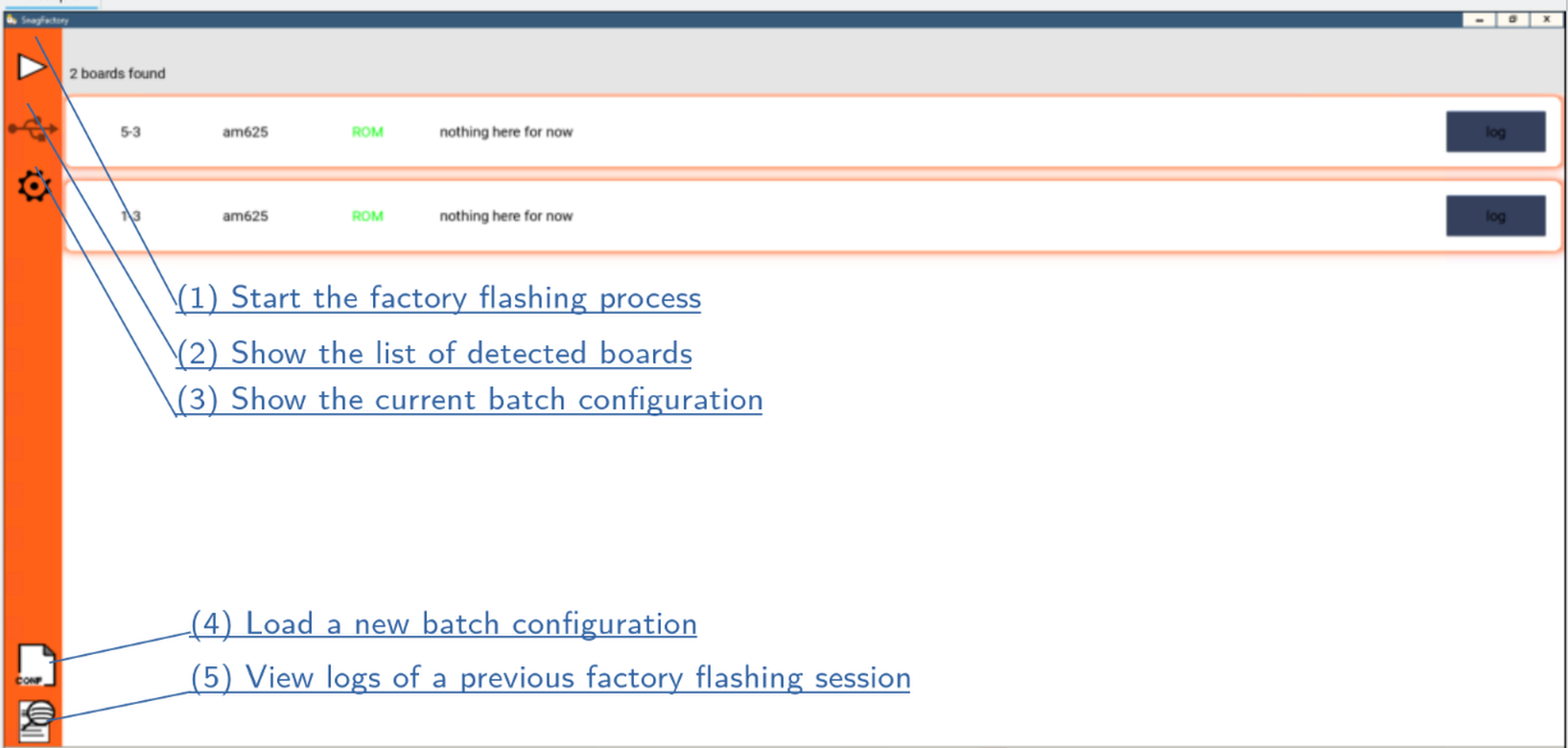
snagfactory UI

Firstly, you should load your configuration file. To do this, click on the load configuration button (4) and select your file. You can check that you loaded the correct configuration by clicking on the view configuration button (3).

Return to the main view by clicking on the board list button (2). Then, power up your boards in recover mode and plug them into your host PC. You should see a matching number of boards appearing in the Snagfactory UI. You may then click on the start button (1) to launch the factory flashing process.

During the factory flashing process, you may view detailed logs for any board by clicking on its « log » button.

Once the factory flashing process is finished, the UI will transition to « log view » mode. In this mode, you can view the final results and detailed session logs for each of the processed boards. These logs will also be stored in the Snagboot appdata directory. You can use the « view logs » button (5) to load the full logs of any previous session.